
The Reservation Pop-up appears after a customer clicks the Reserve Product button on an eligible WooCommerce product page.
It asks the customer to confirm the reservation before SpectralDot creates it.
How the Reservation Pop-up Works
When the customer clicks Reserve Product, the product page is dimmed and a confirmation window is displayed.
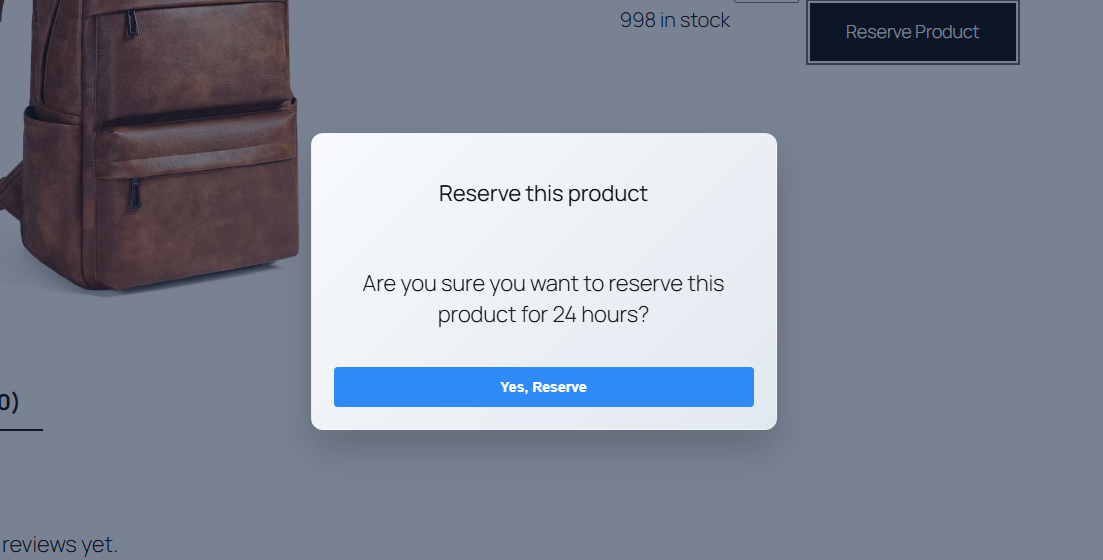
The pop-up includes:
- A reservation title.
- A confirmation message.
- The configured reservation duration.
- A confirmation button.
With approval disabled, the dialog asks the customer to confirm the active hold duration. With approval enabled, it explains how long the request can remain open and how long stock will be held if approved. Pending requests hold no stock. After submission, a separate result state confirms whether the request was submitted or the reservation was confirmed.
Review the active and approval-request durations under:
WordPress Dashboard → Reservations → Settings → General Settings
Confirming the Reservation
To proceed, the customer clicks Yes, Reserve.
SpectralDot then attempts to create the reservation according to the current plugin settings, including:
- Product availability.
- Maximum reservations allowed per user.
- Reservation duration.
- Stock requirements.
- Administrator approval requirements.
When manual approval is enabled, the submitted reservation may remain pending until an administrator approves it.
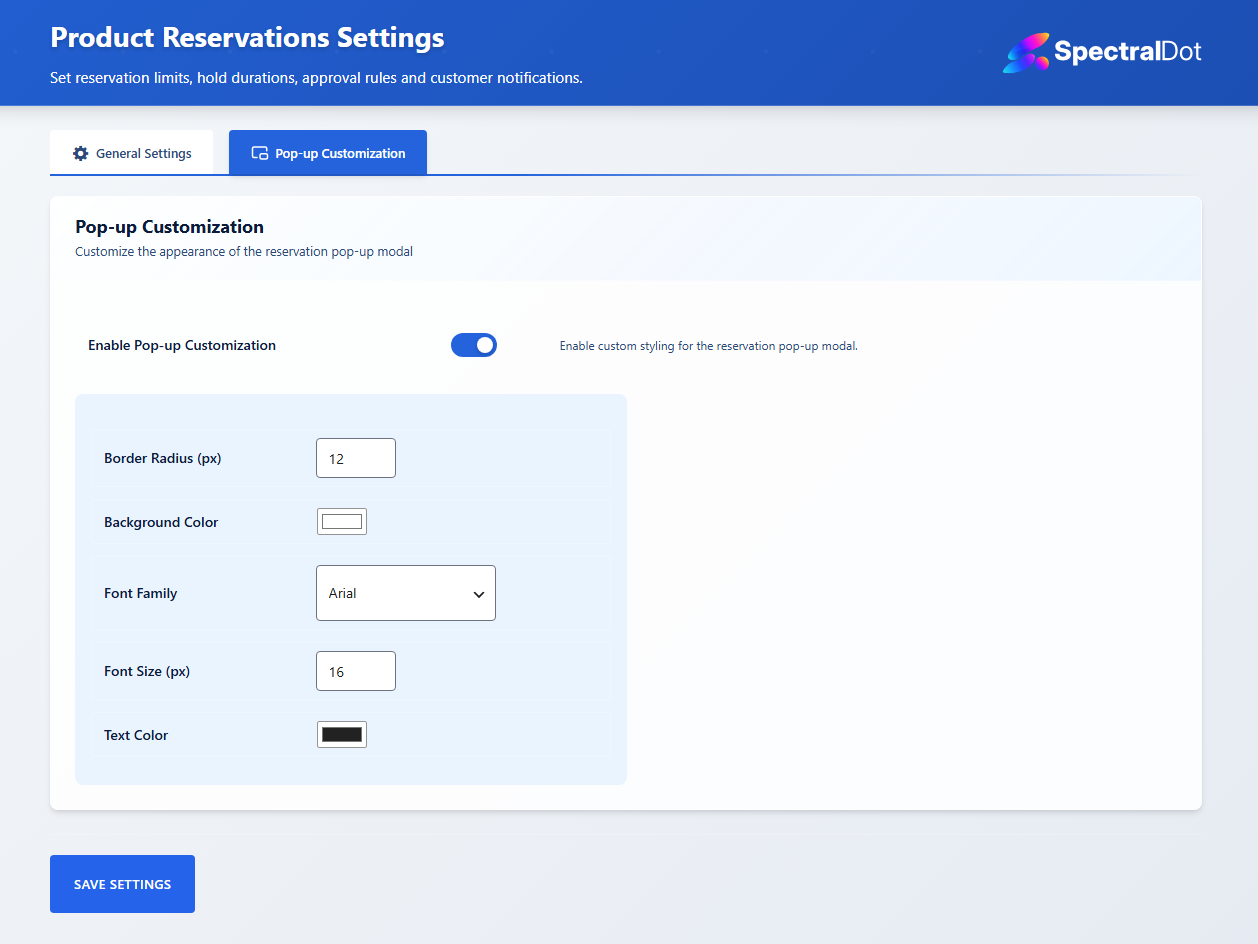
Pop-up Customization
The visual appearance of the reservation pop-up can be customized from:
WordPress Dashboard → Reservations → Settings → Pop-up Customization
Enable Pop-up Customization to apply the custom styling configured on this page.
When this option is disabled, the pop-up uses the plugin’s default appearance or styling inherited from the active WordPress theme.
Available Customization Options
Border Radius
Controls how rounded the pop-up corners are.
The value is entered in pixels.
Examples:
0pxcreates square corners.6pxcreates slightly rounded corners.12pxcreates more noticeably rounded corners.
The settings example uses 12px. Choose the corner radius that suits your store.
Background Color
Sets the main background color of the reservation pop-up.
Choose a color that provides sufficient contrast with the selected text color.
Font Family
Selects the font used for the text displayed inside the pop-up.
For the most consistent appearance, select a font that is similar to the typography used by the active WordPress theme.
Font Size
Controls the base text size used inside the pop-up.
The value is entered in pixels.
The default value shown is 16px.
Text Color
Sets the main text color used inside the reservation pop-up.
Use a dark color for light backgrounds or a light color for dark backgrounds to maintain readability.
What the Customization Affects
The pop-up customization settings primarily control the confirmation window itself, including its:
- Background.
- Typography.
- Text color.
- Corner shape.
The page overlay, button styling, spacing, or other visual details may also be influenced by the active theme or additional custom CSS.
Recommended Configuration
A clean configuration suitable for most stores is:
- Enable Pop-up Customization: Enabled
- Border Radius:
12px - Background Color: White or a light theme color
- Font Family: The same or a similar font to the active theme
- Font Size:
16px - Text Color: Dark gray or black
After making changes, test the reservation pop-up on both desktop and mobile devices to make sure the message and confirmation button remain clear and easy to use.
