
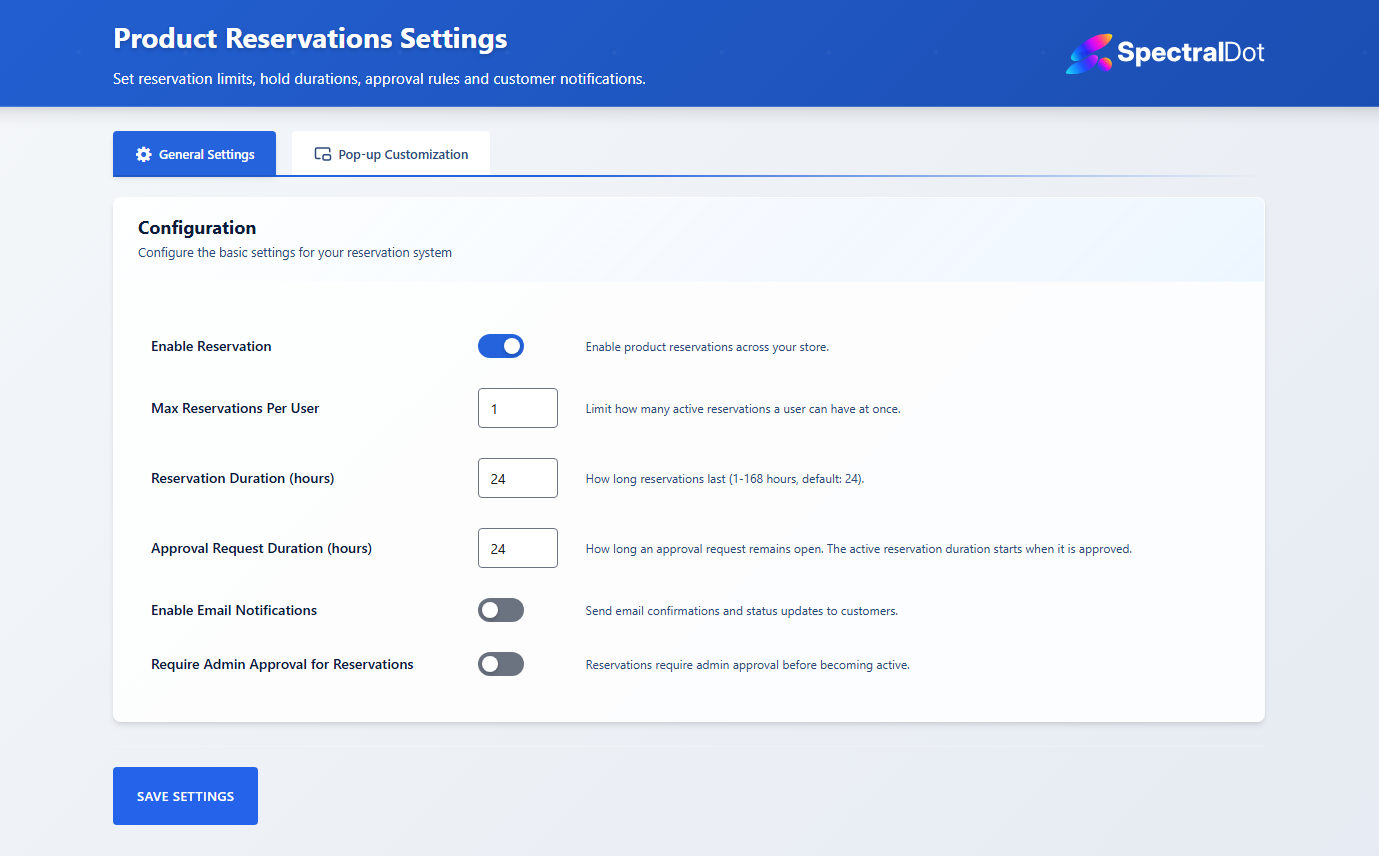
The General Settings page is where you configure the main behavior of the SpectralDot reservation system for WooCommerce, including reservation limits, hold duration, email notifications, and approval requirements.
Use these general settings before enabling product reservations across your store, then review the related setup guides linked below for the full reservation workflow.
To access these settings, navigate to:
WordPress Dashboard → Reservations → Settings → General Settings
General Settings Overview
Enable Reservation
Use this option to enable or disable the reservation system across your WooCommerce store.
When enabled, logged-in customers can reserve eligible published, purchasable simple products and selected variations with WooCommerce-managed stock and positive available stock. A variation may manage its own stock or share stock with its variable parent. Free reserves one unit per reservation.
When disabled, new product reservations will no longer be available.
Max Reservations Per User
Set the maximum number of concurrent open reservations per customer, from 1 to 100. Pending approval requests and active reservations both count. Duplicate blocking applies to the concrete product or variation; the customer limit counts open requests and active holds across all products and variations.
For example, a limit of 5 allows at most five open reservations across products, counting pending and active records together.
This setting can help prevent customers from reserving an excessive number of products.
Reservation Duration
Enter the number of hours for which a reservation should remain active.
The accepted value is between 1 and 168 hours. The default duration is 24 hours.
When an active hold reaches its deadline and expiration is processed, it becomes Expired and releases its held stock once. Pending requests expire without releasing stock because they held none. Processing depends on the site’s expiration workflow.
Example:
A value of 24 gives an immediate active reservation a 24-hour hold. If approval is required, the 24-hour active hold starts at successful approval, not when the pending request was created.
Approval Request Duration (hours)
Set how long a pending approval request remains open, from 1 to 168 hours. Pending requests count toward the customer’s open-reservation limit but do not hold stock. Approval requires sufficient stock and starts a new active deadline using Reservation Duration. Review pending requests before their request deadline.
Enable Email Notifications
Enable this option to send reservation-related emails to customers.
- Reservation creation
- Pending approval
- Approval
- Denial
- Expiration
Free does not include a cancellation email or pre-expiry reminders. Delivery depends on the configured WordPress mail system.
Disable this option when you do not want SpectralDot to send customer notifications.
Require Admin Approval for Reservations
With this option enabled, new valid requests remain Pending approval without reducing stock. An Administrator or Shop Manager can approve or deny the request under Reservations → Reservations (Manage Reservations page). Successful approval makes it Active, holds one unit and starts its active duration. With approval disabled, valid reservations become Active immediately.
Recommended Basic Configuration
Choose limits and durations that match your available stock and staff review capacity. The values below are an example, not a universal recommendation or a list of plugin defaults.
- Enable Reservation: Enabled
- Max Reservations Per User: 5
- Reservation Duration: 24 hours
- Enable Email Notifications: Enabled
- Require Admin Approval: Disabled for automatic reservations, or enabled when manual verification is required
The ideal configuration depends on your available stock, order volume, and how closely you want to review customer reservation requests.
Related General Settings Guides
After reviewing the general settings, continue with the Getting Started with SpectralDot guide, configure the Reserve Product Button, and learn how to manage reservations from the WordPress dashboard.
If you are new to store setup, you can also review the official WooCommerce settings documentation to understand how core WooCommerce settings work alongside SpectralDot reservation options.
